Git: how to tag old commit

Another noob git tip. Tagging with git is easy and I won’t duplicate another explanation here. But suppose you want to tag a commit which you already pushed to another repo. When you push, nothing happens. I had tagged before, so I thought the problem was that I wanted to tag a commit which I already pushed.

But the trick to know here is: push simply does not push tags by default. You have to specify an option. So any tag you would want to share, on your last commit or any other commit, you would have to push explicitly:

git push origin <mytag>

or if you’d want to sync all tags in one go:

git push --tags origin

So, the title of this blog post was actually a trick question 😉

Win7RCAutoShutdownAlarm v0.2

Today I finally discovered why there always remained some garbage in the transparent area of the systrayicon where the piechart had passed by. It also turned out it really pays to read up-to-date Qt docs. I accidentally noticed the difference when reading the source. 🙂

Things learned:

  • when constructing an QImage you plan on using transparency on, always initialize it properly (using some fill you like).
  • when using QPainter on QImage, always use a alpha premultiplied format, for performance reasons.

I thought this new acquired knowledge justifies a new release. 🙂 So welcome v0.2 with the following changelog:


v0.2
- fixed systray render bug leaving garbage in transparent area
- added 128px taskbar icon
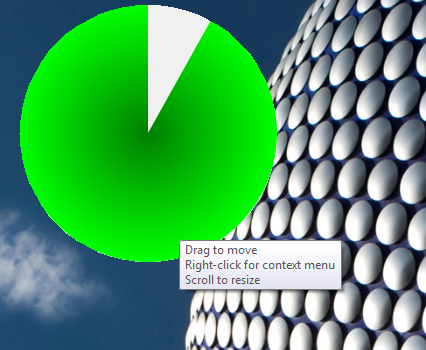
- added transparent circle background, otherwise you don't see anything near the end ;)

Getting mic to work with NVidia VT1708S

Ever since I installed opensuse 11.3, I hadn’t used my mic/headset. Today I decided to fool a bit around in Ardour, but somehow my mic didn’t work. And alas, I made a classic beginner’s mistake: “the solution has to be difficult because it does not work out of the box”.

I tried the standard stuff like trying out all input sources, adding hidden channels, etc. but when that didn’t help I was quickly diving into custom .asoundrc configuration, arecord/aplay sysinfo scripts, probing kernel modules, looking into alsa upgrade scripts and the like.. 🙂

Until I had an epiphany while reading random forum post words. I had been adding the “hidden” channels to my mixer which indeed included “mic” and “front mic” with accompanying boost controls. I noticed a few others which I threw in as well for good measure. I neglected them though, as I didn’t feel interested in enabling “smart” 5.1 or IEC958 2, whatever that was. But then I suddenly remembered: motherboards come with configurable audio backpanels, so this wasn’t really about enabling a fancy audioprocessing feature but rather switching between the 5.1 and standard audio panel, duh!

Apparently, the 5.1 was enabled by default, so “muting” it solved my problem!

Btw, in case you wonder: the HDA NVidia VT1708S chipset is actually a HDA Intel chipset with VIA codec, hence the VTxxxx name. To keep things intesting. 😉

Git: set up remote branch tracking post factum

I often have the following scenario:
– create local repository/branch
– create gitorious project/repository
– push branch to gitorious

This way you end up with your local branch not tracking the remote one. You know you’re not tracking when you have to specify the branch every time you push/pull and when you don’t see how much commits you are ahead of the remote. It is a matter of setting up the correct tracking configuration, something like this for the master branch:

git config branch.master.remote origin
git config branch.master.merge refs/heads/master

However, I just discovered that since git 1.7 there is now a command for this:

git branch --set-upstream master origin/master

much easier to remember!

Google to disable site scraping feed service

For ages, I had been requesting a site monitoring feed for sites that don’t have an rss feed. It’s not so difficult, keep track of changes and post the diff in an RSS feed (kind of 😉 ). In the beginning of this year, google finally implemented that! I didn’t expect it.

Anyway, short joy: google has announced it will discontinue this service. 🙁

Here is a tip for people like me having hundreds of feed to find back those special feeds more easily: go to manage subscriptions and filter on “webfeed”. All those site scraping feeds start with “http://www.google.com/reader/public/atom/webfeed/”. Happy page2rss migration. 🙂

I <3 libpcap

A few years ago, I wrote a small app showing the open network connections (announcement following shortly). I never figured out how to measure transfer rates over the connections since the kernel does not seem to provide this info through the /proc filesystem (only some data queue length which is related to kernel mem usage).

Today we all know and love iftop, but where does it get that info? Simple: pcap! Out of curiosity, I checked out the libpcap docs to see how hard it would be to get started. Turned out to be pretty simple! There are a few excellent tutorials which get you started real fast. In about half an hour I made this very simple sniffer which accumulates the received bytes and packets per second and prints it out when the second changes. Each line contains the timestamp (sec), KB/s and number of packets received in that second. Here you can see me watching a youtube vid 🙂

Opening device eth0
ts = 1285276934, load = 0.7 KB/s (4)
ts = 1285276935, load = 0.3 KB/s (1)
ts = 1285276939, load = 0.9 KB/s (4)
ts = 1285276940, load = 14.4 KB/s (44)
ts = 1285276941, load = 294.9 KB/s (764)
ts = 1285276942, load = 608.9 KB/s (1505)
ts = 1285276943, load = 1164.4 KB/s (2882)
ts = 1285276944, load = 1242.6 KB/s (3064)
ts = 1285276945, load = 1166.6 KB/s (2880)
ts = 1285276946, load = 69.9 KB/s (179)
ts = 1285276947, load = 140.1 KB/s (363)
ts = 1285276948, load = 139.9 KB/s (361)
ts = 1285276949, load = 139.7 KB/s (358)
ts = 1285276950, load = 139.7 KB/s (358)
ts = 1285276951, load = 139.3 KB/s (358)
....

It is a good test to see if the calculated payload is correct. The initial burst of ~1.2MB/s confirms that. 🙂

Project announcement: Win7 RC auto reset alarm

Okay, this is becoming a bit outdated since windows 7 has been released for quite some time now, but you never know there are some other poor lads like me out there still using the RC. =)

Why I am using the RC is quite a story actually.. About a year ago, I bought this really beefy game rig. I tried some games using wine and although in general I managed to play them, I found it a bit silly that I wasn’t enjoying my new box for a 100% since there was always some direct3d feature not implemented yet or subpar framerate. So I decided I’d buy a game console software, aka Windows. But XP was almost EOL, Vista was a mess and Seven wasn’t released yet. So I figured I’d install the release candidate and see how it went from there.

All went well! And for the first time in many years, I even felt Microsoft was back on track. All my games ran very well. Until the day of doom, March 1st 2010. 🙂 On that day, Microsoft started to reboot all windows 7 rc’s every 2 hours. And by reboot, they don’t mean clean shutdown, they mean hard reset! Fair enough, it’s not like I paid for it.

Anyway, since I use Wintendo only for games, I realised it was actually a good thing that windows made me take a brake every few hours. It’s a good time to reassess the situation and maybe conclude to stop and do something else. 😉 No matter how I tried, I would always lose track of time and end up with game progress not being saved, steam stats not updated/lost, etc. So that’s where my little “windows 7 rc auto power off alarm” comes in. =)

This little utility will give an audible warning every minute when 1h45min have passed by. 10 mins later it will warn you with an additional sound, every 2 secs, that now the time really has come to finish your current mission/save your progress and do a proper shutdown. It is advisable to put this program in your startup folder so that it automatically starts when you log in, although it does not really matter when you start it as it initializes the timers using the boot time and not the time the program is started.

When the program is started, it sits in the system tray. Clicking on it will show you how much time is left. If you have a second monitor you can also use the pie chart countdown widget to have a visual indication on when to shutdown. Activate it by right-clicking on the systray icon and click “Show timer”. It shows green and should turn red when 0-hour is approaching. Click and drag it to move it around, scroll on it to scale.

Win7RCAutoShutdownAlarm desktop widget Win7RCAutoShutdownAlarm systray icon

Source is on gitorious, binaries can be download from qt-apps.org.

That’s it!